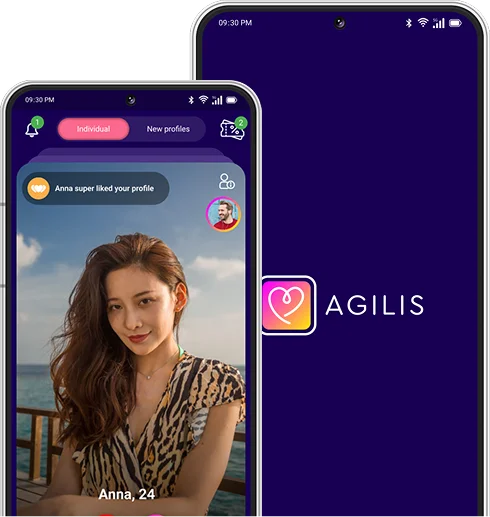
Connect an AI assistant to Agilis advertising
Let Claude, ChatGPT or another assistant manage your Offers and Events and report on their results, using your Ad Portal sign-in. You choose what it can do, and in which mode.
The address to add
https://ads.agilis.dating/api/mcpStreamable HTTP. Sign-in uses OAuth with your Ad Portal account.
1. Sign in with your Ad Portal account (recommended)
Claude
Checked 28 Nov 2026- Settings › Connectors › Add custom connector.
- Paste the address, then Add.
- Select Connect and sign in to the Ad Portal.
- Choose what Claude can do, and Test or Live, then Allow.
ChatGPT
Checked 28 Nov 2026- Plugins › Add › Add custom MCP server.
- Paste the address and choose OAuth.
- Create, then sign in to the Ad Portal.
- Choose what ChatGPT can do, and Test or Live, then Allow.
On chatgpt.com in a browser. What your plan allows is set by OpenAI.
2. Or use an API key
For a tool that can't sign in, send a key from the Ad Portal's API keys page in the x-api-key header, or as Authorization: Bearer. The key's own mode applies. Keep it in an environment variable, never in a file you share.
What your assistant can do
- Read: your balance and invoices, categories and interests, price estimates, your Offers and Events and their results.
- Change (if you allow it): create, pause, resume and delete Offers; preview, publish, edit, reschedule, cancel and delete Events.
- Webhooks: for Org Admins and Developers.
What it can't do
- Take a card payment or top up a balance.
- See member profiles, messages or anything that identifies a member.
- Restore a deleted Offer or Event.
- Do anything your role in the Ad Portal doesn't allow.
A safe first session
Connect in Test mode and ask: “What's my balance?”
“Estimate the price of a 7-day Offer for members within 5 km.”
“Create a test Offer for 10% off coffee this weekend.” Nothing is charged and members never see it.
“Delete that test Offer.” Then connect in Live when you're ready.
Test, Live and who pays
In Live mode, changes are real: members see them, and creating an Offer or publishing an Event is paid from your own balance, within your organisation's spending limits. Ask your assistant for the price first: it can estimate it, or check the whole Offer and its price without creating it. Every change is listed on the Ad Portal's API activity page.
Security
The assistant acts as you, with your role. You can see and disconnect every connection under AI assistants › Connected apps; disconnecting stops it straight away. Org Admins can set spending limits in Settings.
Troubleshooting
The assistant can't connect
Check the address. Some company networks inspect secure connections and block them; try another network.
My sign-in or key isn't accepted
Check the key was copied in full and hasn't expired or been revoked. For sign-in, disconnect the assistant and connect again.
Connected, but it says it isn't allowed
You may have chosen View only, or your role doesn't allow it (Advertisers can't manage webhooks). Your business may not be approved yet, or an Org Admin needs to accept the current Advertising Terms (E9).
It's working in the wrong mode
Each connection has one mode. Disconnect it and connect again, choosing the other mode.
A Live change was refused
Your balance may be too low (E3): top up in the Ad Portal. Or a spending limit was reached (E17): the reply says which limit and when it resets.
The reply has a code such as E3
Every refusal has a return code. The API reference lists what each one means.
“Too many requests”
Wait for the number of seconds in the reply, then try again.
An image was refused
Images are checked before they're published. Choose a different image.
My tool can't sign in or send a header
Use sign-in where the tool supports it, or a tool that can send the x-api-key header.